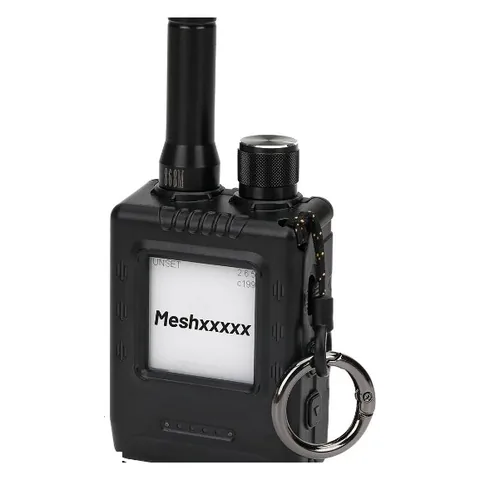
BoxOnPost for the ThinkNode M1
BoxOnPost pages on the radio's screen · holds 48 messages.
BoxOnPost v0.7.3 includes MeshCore 1.18.0. Installing it replaces the firmware on your radio with this version.
Brand-new radio, or not running MeshCore yet?
Radios often arrive with other firmware (such as Meshtastic) or a factory test program. Before installing BoxOnPost, first install the official MeshCore Companion firmware for your radio from flasher.meshcore.io, connect it to the MeshCore app and make sure it works. Then come back here.
Already on MeshCore? Any recent version is fine: BoxOnPost v0.7.3 replaces it with MeshCore 1.18.0 plus the BoxOnPost features. If your radio runs a MeshCore version newer than 1.18.0, do the backup below before installing.
Back up your private key
Installing keeps your identity, contacts and settings. The backup is a safety net in case something goes wrong.
In the MeshCore app, open Settings and choose Export private key. Keep it somewhere private, like a password manager, and never share it. Also screenshot your radio settings and note any private channels. Full backup steps.
Download the file
Pick your version first.
TESTED This version has been run on real radios.
thinknode_m1_keep_companion_radio_ble-v1.18.0-BOP-0.7.3.uf2
The Bluetooth version, for the phone app. Installing it keeps your identity, contacts and settings.
TESTED This version has been run on real radios.
thinknode_m1_companion_radio_ble-v1.18.0-BOP-0.7.3.uf2
The Bluetooth version, for the phone app. Installing it keeps your identity, contacts and settings.
Install it
- Plug the radio into a computer with a USB data cable. Any computer works: Windows, Mac, Linux or a Chromebook.
- Double-press the reset button quickly. A USB drive appears on your computer, like a memory stick. If it doesn't, try again a little faster or slower. (Some ThinkNode models use a different button combination: check Elecrow's guide for yours.)
- Copy the
.uf2file you downloaded onto that drive. - Wait. The drive disappears by itself and the radio restarts. Your computer may say the drive wasn't ejected properly; that's normal.
Check it worked
Reconnect the MeshCore app. In Settings the version reads v1.18.0-BOP-0.7.3, and your contacts are still there.
Try it
- Find the new pages. Short-press the button to move through the pages. After “Recent adverts” come MAILBOX, LAST TRIES, SEND NOW, CLEAR MAILBOX, HOLD MESSAGES and SIGNAL. A long press (about 1 second) uses the page you're on.
- Hold a message. Send a direct message to a radio that's switched off. The app says “failed”, but MAILBOX on your radio shows Held: 1.
- Watch it deliver. Switch the other radio back on. Within about 15 minutes (or straight away if you long-press SEND NOW) it gets the message and your screen shows Delivered.
The Guide explains every page.
Good to know
- Two versions, pick the one you like. Screen stays on: when the backlight times out, your name, messages and status stay readable, so you can check it at a glance without pressing a button (one quick flash first clears any ghosting). Stock: the screen goes blank white and redraws when you press a button, like standard MeshCore 1.18. You can switch any time by installing the other file.
- E-ink screen: BoxOnPost pages update every 30 seconds instead of every second, so the screen doesn't flash constantly or wear out. Countdowns jump rather than tick. Text is re-darkened on every update, with a clean full redraw every so often, so it stays sharp and black.
- Holds 48 messages (less file space on this chip).
Something went wrong?
No USB drive appears? Try the double-press again at a different speed, use a different USB cable (it must carry data), or check Elecrow's or Heltec's guide for your model's button combination.
Going back to official MeshCore: download the official Companion .uf2 for your radio from flasher.meshcore.io or the MeshCore releases page, and copy it on the same way. Your identity and contacts are kept.
Update over Bluetooth instead (advanced)
Install Nordic's free nRF Device Firmware Update app (iPhone or Android), pick your radio and this .zip file. Keep the phone close and the app open until it finishes.